Documentation Index
Fetch the complete documentation index at: https://arize-ax.mintlify.dev/docs/llms.txt
Use this file to discover all available pages before exploring further.
Using the Time Selector
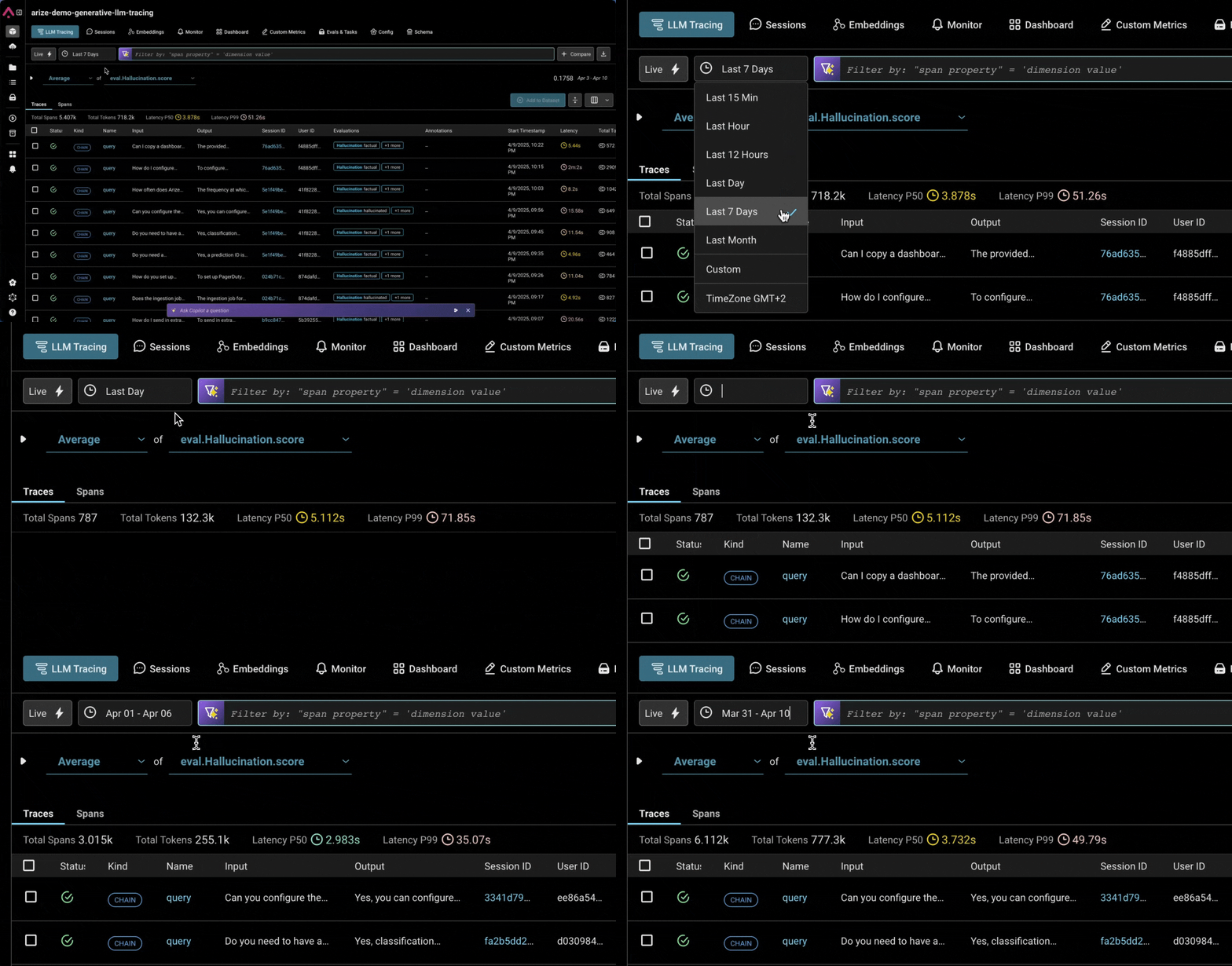
Our updated time selector makes it faster and more flexible to filter your data to the exact time window you care about. You can still select from quick presets like “Last Hour” or use the calendar picker — but now you can also type in custom shorthand or specific date/time formats directly.
Typing Custom Ranges
You can enter custom time ranges using any of the following formats:
| Format | Example |
|---|
MMMM d | March 23 |
MMM d | Mar 23 |
M/d | 3/24 |
MM/dd | 03/24 |
M/d/yyyy | 3/24/2025 |
MM/dd/yyyy | 03/24/2025 |
| Format | Example |
|---|
MMMM d h:mm a | March 23 3:00 am |
MMM d h:mm a | Mar 23 3:00 am |
M/d h:mm a | 3/24 3:00 am |
MM/dd h:mm a | 03/24 3:00 am |
M/d/yyyy h:mm a | 3/24/2025 3:00 am |
MM/dd/yyyy h:mm a | 03/24/2025 3:00 am |
4/1 - 4/6 or 4/1 3:00 am - 4/6 5:00 pm
Relative Time Shortcuts
Quickly jump to a relative window by typing:
| Shorthand | Description |
|---|
15m, 15min, 15minutes | Last 15 minutes |
1h, 1hr, 1hour, 1hours | Last hour |
1d, 1day, 1days | Last day |
10d for the last 10 days.
Timezone Support
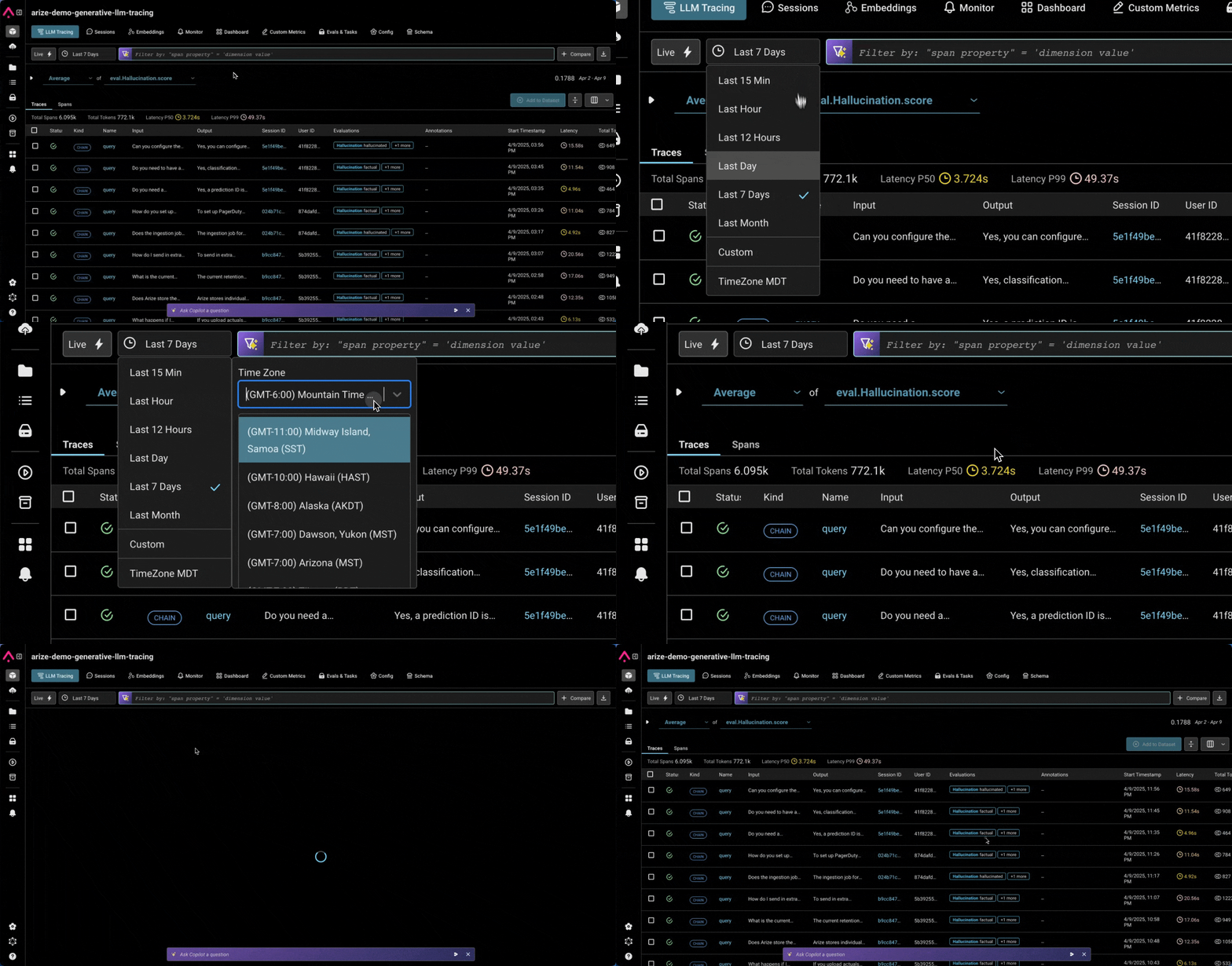
You can also customize your timezone, and your selection will persist across the platform, so you’re always seeing the data in your preferred context.